

My ERP Partner

Sage Intacct AP Automation: Features, Benefits, Setup Guide, and Best Practices

Sage Intacct AP Automation Guide

Manual management of accounts payable (AP) is a stumbling block for every growing accounting team. Processing paper bills, rekeying data line by line, chasing managers for sign-off and matching Purchase Orders takes up many hours per week, leading to unnecessary human errors and costing the business money.

The Sage Intacct AP Automation feature digitizes the entire payables process within your accounting system, and using integrated Artificial Intelligence (AI) and Machine Learning (ML), automatically reads and extracts data from vendor invoices, predicts the GL coding and amounts for new invoices, matches POs with vendor bills and routes them to the correct approvers before payment.

Let us explore some important topics covering Sage Intacct AP Automation, including its features and benefits; how to configure ingestion and the appropriate rules; best practices to ensure accuracy and efficiency; and when and how to utilize its capabilities.

What is Sage Intacct AP Automation?

Sage Intacct AP Automation is a fully integrated set of features within Sage Intacct which is used to manage payables from end to end – from receiving the vendor bills to generating, approving and paying them.

Unlike separate add-on applications from third-party vendors who use Optical Character Recognition (OCR) template readers; sage Intacct uses internal Artificial Intelligence and Machine Learning to process invoices. The AI system reads each email or upload of vendor invoices that has been sent or attached to it, checks for the existence of such vendor in the system, matches your historical transactions, generates a draft AP bill for you to review, and attaches the original file to the record in Sage Intacct.

Key benefits for finance teams:

  • Eliminate manual entry – AI reads vendor name, bill number and date, invoice amounts and quantities from the incoming invoices.

  • Predicts GL accounts, departments and dimensions – AI uses past experience of your transaction to predict all required account assignments for your draft bill.
  • Speeds up approvals – workflow rules automatically route draft invoices to specific managers for approval via email or mobile application.
  • Lowers processing costs – saves valuable time and prevents the same bill from being paid twice.

Key Features and Business Benefits

Sage Intacct AP Automation combined the advanced capabilities of Artificial Intelligence with logical, structured rules.

Key FeatureHow It WorksCore Business Benefit
Automated Invoice CaptureInvoices received via email, PDF uploads, vendor portals, or scanned paper are captured using Optical Character Recognition (OCR) and AI-powered document recognition to pull vendor details, dates, amounts, and line items automatically.Faster Invoice Processing: Eliminates manual typing, speeds up invoice entry, and prevents data-entry mistakes.
Intelligent Data ExtractionThe system recognizes invoice layouts from different vendors and learns over time to automatically capture vendor info, GL coding, departments, projects, dimensions, tax details, and payment terms.Reduced Manual Coding: Drastically cuts down repetitive data entry and manual GL coding effort.
Automated Approval WorkflowsInvoices automatically move through configurable approval rules based on amount, vendor, department, project, location, entity, or expense category with mobile and email approval capabilities.Stronger Approval Controls: Ensures invoices are reviewed by the appropriate personnel before payment and speeds up processing time from days to hours.
Purchase Order MatchingSupports automated matching against Purchase Orders (PO), receiving documents, and vendor bills.Improved Pricing Accuracy: Verifies quantities, confirms correct pricing, and prevents duplicate payments.
Duplicate Invoice DetectionAutomatically cross-checks invoice numbers, vendor details, amounts, and dates across existing records.Risk Reduction: Prevents duplicate payments and reduces costly accounting errors before posting.
Real-Time AP DashboardProvides live monitoring for outstanding invoices, approval statuses, aging reports, payment schedules, cash requirements, and vendor balances.Better Cash Flow Management: Delivers complete visibility into pending liabilities to help forecast cash needs, capture early payment discounts, and avoid late fees.
Document Management & Audit TrailInvoice documents remain attached directly to transactions with a complete historical record of receipt, approval actions, user changes, and modification timestamps.Enhanced Compliance: Simplifies internal audits and creates paperless operations with zero physical storage requirements.
Multi-Entity SupportCentralizes invoice processing while allowing local or entity-specific approval routing and separate financial reporting.Scalable Operations: Effortlessly consolidates AP operations across growing businesses, holding companies, and multiple locations.
 

Step-by-Step Setup: Enabling Ingestion & Workflows

SetupSage Intacct AP Automation setup require you to configure the ways the bills can enter the system and default processing and approval rules.


Step 1: Verify Subscription & Enable Module

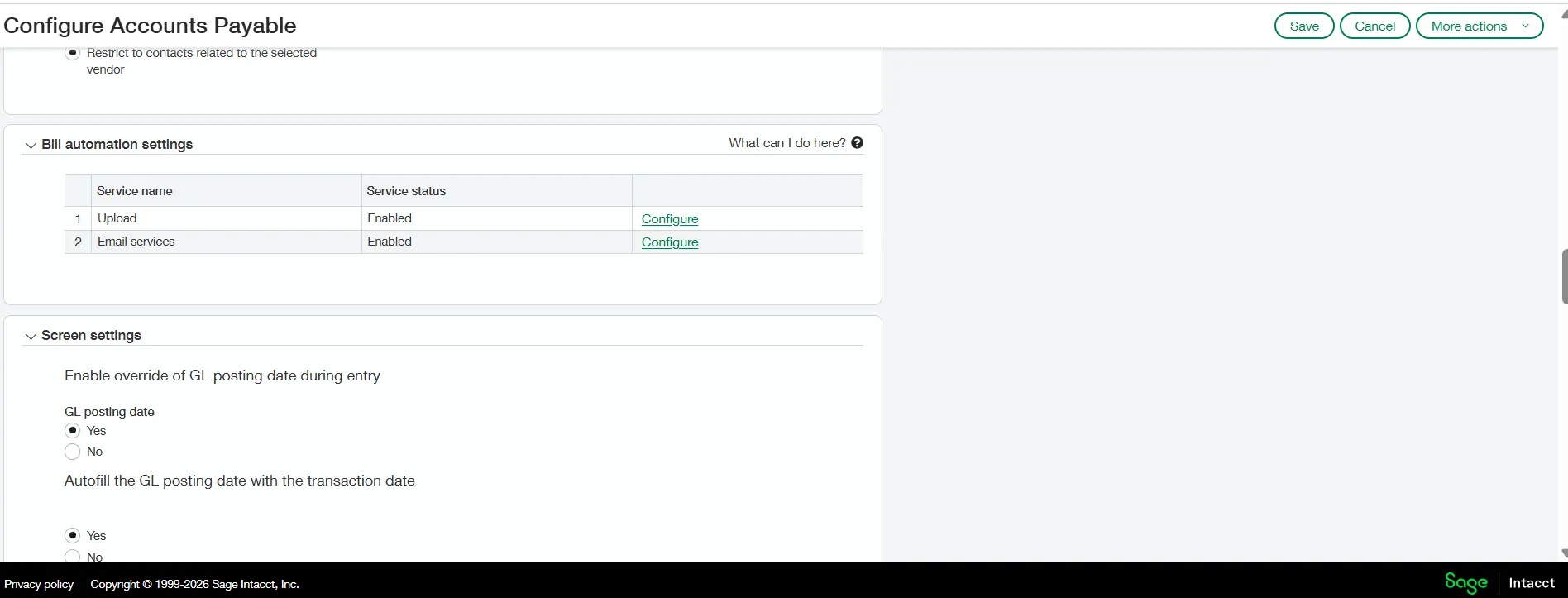
Confirm your Sage Intacct subscription includes the AP Automation add-on module. Under Accounts Payable > Setup > Configuration, locate the AP Automation settings section.


Step 2: Configure Ingestion Email Addresses

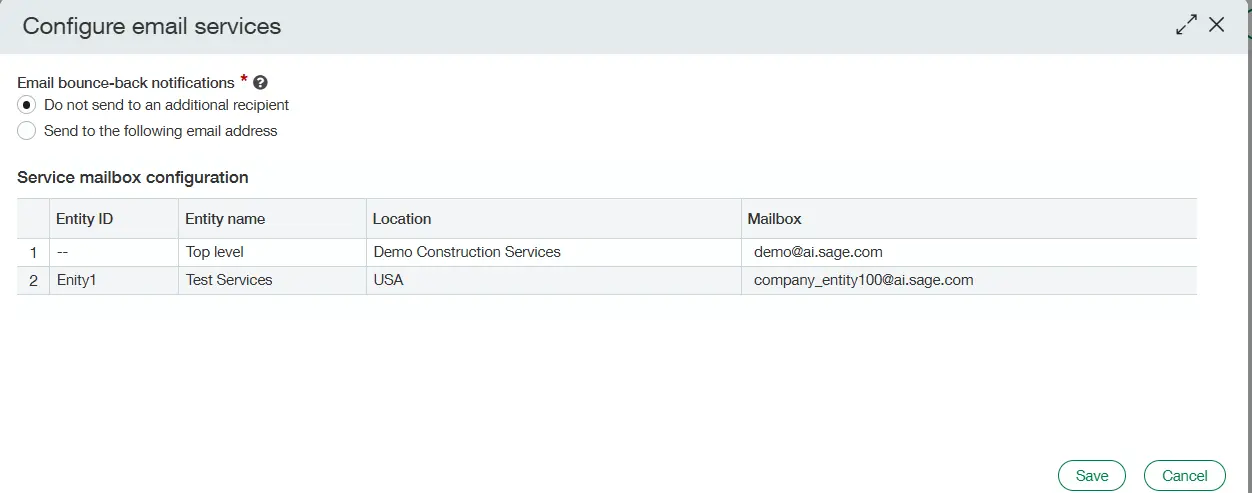
Sage Intacct provisions unique, dedicated system email addresses for your account.

  • Top-Level Email: Used if you process bills centrally across all business units.

  • Entity-Level Email: Unique addresses generated for individual entities (e.g., company_entity100@ai.sage.com).

  • Best Practice: Set up an internal email alias (like ap@yourcompany.com) that automatically forwards incoming vendor invoice attachments directly to your Sage-provisioned email addresses.

Step 3: Configure Direct Document Upload Rules

For paper invoices or saved files, team members can upload documents in batches:

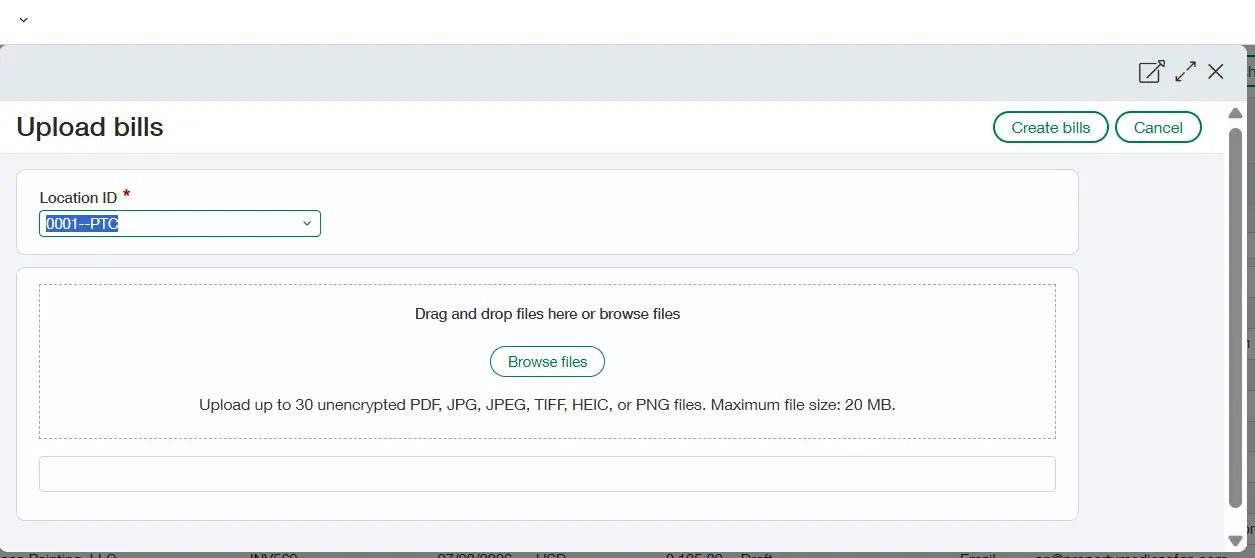
  1. Navigate to Accounts Payable > Bills and select Upload.

  2. Choose your default Location (used as a fallback for new vendors until the AI learns your patterns).

  3. Select your line item preference: Single line item (summarizes total) or All line items and associated amounts (detailed line breakdown).

  4. Drag and drop up to 30 files at a time (supported formats include PDF, PNG, JPG, JPEG, TIFF, HEIC up to 20 MB per file).


Step 4: Define Approval Hierarchies

Set up rule-based approval routing under AP Configuration:

  • Dollar Thresholds: Route bills over a specific limit (e.g., $10,000+) to a Controller or CFO.

  • Dimension Routing: Direct bills to specific Department Managers or Location Leads based on line item coding.

Step 5: Train and Validate the AI Model

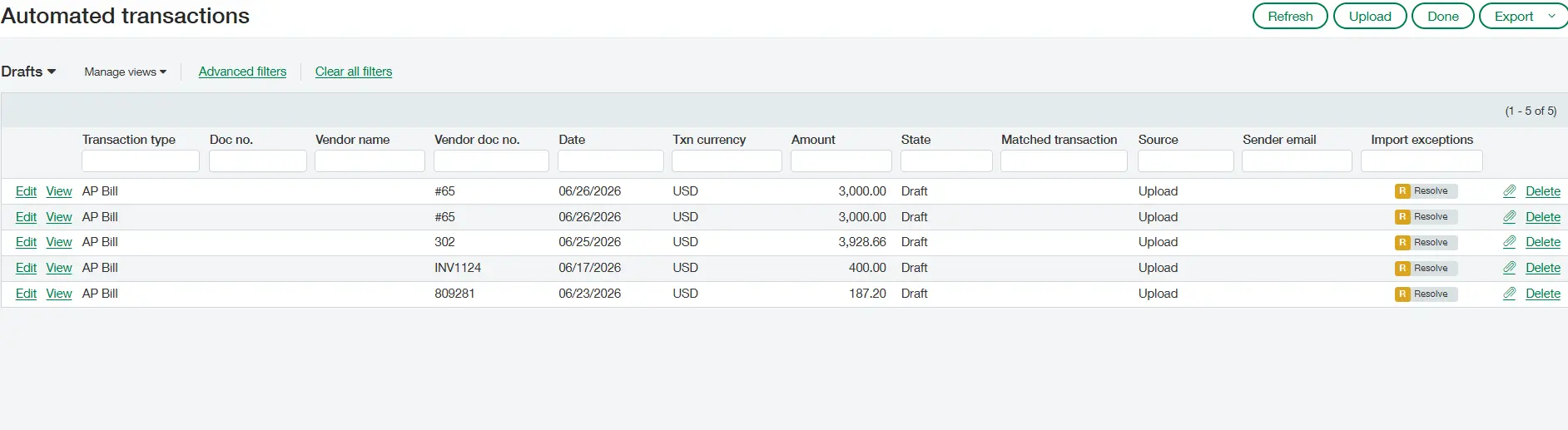
Submit initial test invoice batches. When the AI creates a draft bill, review the extracted values, adjust any GL accounts or dimensions if necessary, and post the bill. Every edit you make feeds back into the machine learning engine to improve future predictions.
Key Operational Considerations

Although automated AP will create immediate efficiencies; it is critical to realize the impact of certain elements

  • First few weeks – AI needs to be coached. Human attention is required.
  • Documents quality – the AI performs better with clear, unencrypted pdf invoices or high-quality scanned images. Password secured invoices or blurry documents will create issues. 
  • Exceptions – some transaction processes will still require manual action, e.g. Credit memos, pre-payments, partial receiving POs etc.
  • Approver – get delegate approvers to act for vacations or busy periods, otherwise the approval process could be stalled.

The 3 Biggest Reasons AP Automation Projects Fail (and How to Avoid Them)

  • Garbage Data in Your Vendor Master – AI invoice capture depends on your vendor database to find the right supplier and assign GLs. If you have duplicate suppliers (“Acme Corp” and “ACME Inc.”), or suppliers without defaults, the software will struggle and your users will need to intervene. Clean your suppliers and set defaults for GLs, payment terms and dimensions before you start automating – the effort you put in now will be saved by human later on.

  • Overly Complex Approvals and Missing Tolerances – 
    Jumping on the organizational chart bandwagon-some teams replicate the org chart in their approval workflows, so four people “approve” $200 invoice; and others detail no pricing tolerances (such as $2 freight variance), and every sliver of difference gums up the invoice. Design build workflows with consideration to financial risk, not hierarchy, and set clear tolerances so small differences don’t grind invoices to halt.
  • Ignoring Non-PO Spend and Purchasing Workflows – 
    Efficiency in AP will only be achieved if your underlying purchasing process is providing the necessary information for it. If you want to automate the 3-way matching of purchase, you must be using the Purchasing application of Sage Intacct to capture purchase orders and receiving documents. For the non-PO expenses such as utilities, rent and legal, simply create recurring bills templates and default coding rules so that you don’t end up processing bills manually.

Practical Best Practices for Maximum Value

  • Standardize your vendor communications: Ask your vendors to submit invoices via email, using your dedicated AP inbox.
  • Maintain and clean up your vendor masters: Ensure the correct vendor names and other identifying information are in place; otherwise, the AI can struggle with matching.
  • Check draft invoices frequently: Review the outstanding purchase invoice draft worklist on a daily basis.
  • Implement dimensions effectively: Utilize dimensions to ensure correct allocation of expenses per cost center, location, project and customer.

Conclusion: Need Help Optimizing Your Sage Intacct Operations?

Sage Intacct includes extremely efficient features for managing accounts payable, multi-entity consolidated reporting, financial workflows automation, and many more. Proper configuration and management of the approval rules, ingestion setups and dimension strategy all require time and careful technical planning.

If your company is already using Sage Intacct or looking into implementing AP automation, then this is the opportune time to review your current system setup.

My ERP Partner’s certified technical consultant experts fully understand Sage Intacct features and have a deep expertise in implementing sophisticated financial management tools. Let us help you streamline your accounts payable by optimizing the Sage Intacct approval processes, configuring the ingestion rules, and correctly setting up your multi-entity dimensions, building custom reporting and much more.

Contact My ERP Partner today to speak with an expert ERP consultant on how to maximize your Sage Intacct system efficiency.

Contact Us!


    The owner of this website has made a commitment to accessibility and inclusion, please report any problems that you encounter using the contact form on this website. This site uses the WP ADA Compliance Check plugin to enhance accessibility. Skip to content